WhatsApp Integration
Connecting WhatsApp means your agent takes messages sent to a real WhatsApp Business number. No chat bubble, no separate app - users message you the way they already message anyone else, and your agent replies.
What you are connecting
Two things on the Meta side have to exist before X3 can do anything:
Meta Business Account
A phone number not already on WhatsApp
X3 then handles the connection itself via Meta's embedded signup flow - a single popup inside your dashboard where you pick the account, pick the number, and grant permissions. The whole handshake takes about five minutes.
Prerequisites
Make sure you have everything below ready. This takes 5 to 10 minutes.
1. Meta Business Account
Create one at business.facebook.com. Use your real business name - Meta will verify this. You need to be the Admin of the account.
2. A WhatsApp-compatible phone number
- Can be a mobile or landline number.
- Must not already be a WhatsApp account (personal or business).
- Can be a dedicated business line or a company mobile.
- For Malaysian numbers, use the international format starting with
+60(e.g.+60 12-345 6789for mobile,+60 3-1234 5678for KL landlines). Do not include the leading0.
3. An X3 Agent with a system prompt
- You must be logged in to X3.
- At least one Agent must be created.
- The Agent should have a system prompt set up - this defines how it responds to customers.
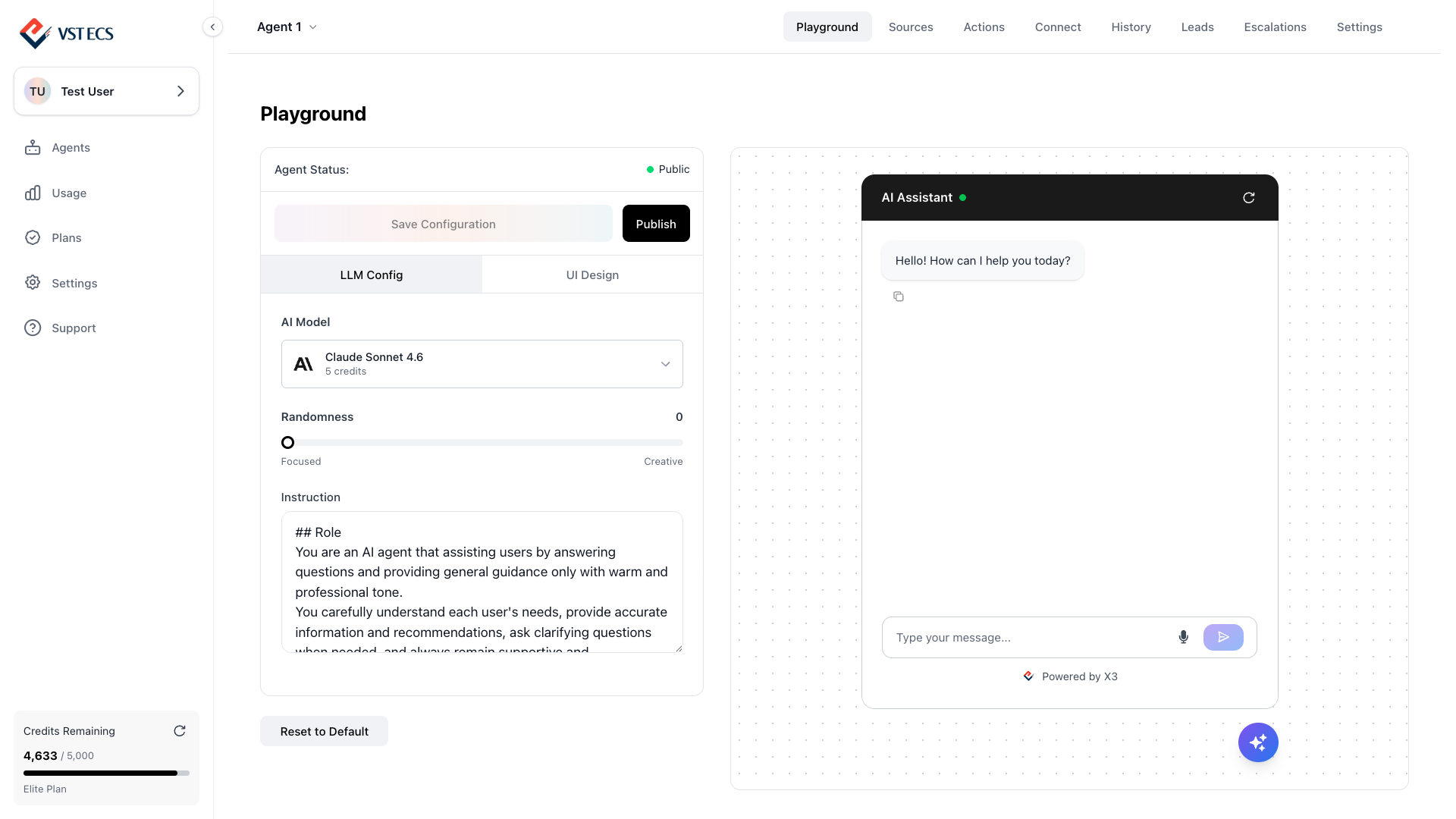
Your agent should already respond correctly in the playground before connecting WhatsApp.
4. Admin access to Meta Business Manager
You need Admin-level access to your Meta Business Manager. Standard user access is not sufficient to complete the WhatsApp setup.
Connect in the Dashboard
Once your Meta Business Account is ready, connecting it to X3 takes just a few clicks.
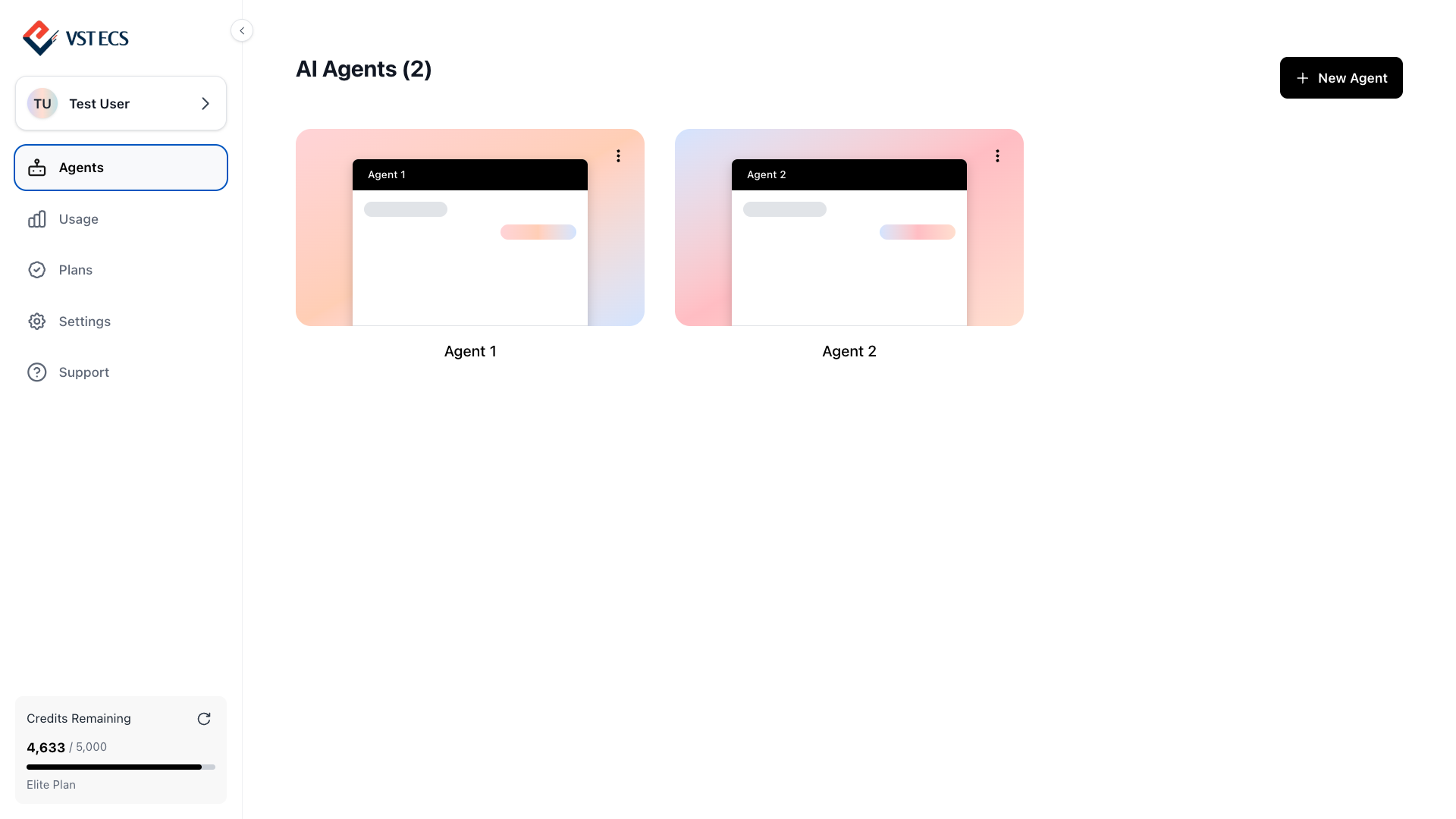
Open your Agent
In the dashboard, click Agents in the left sidebar and select the agent you want to connect WhatsApp to.
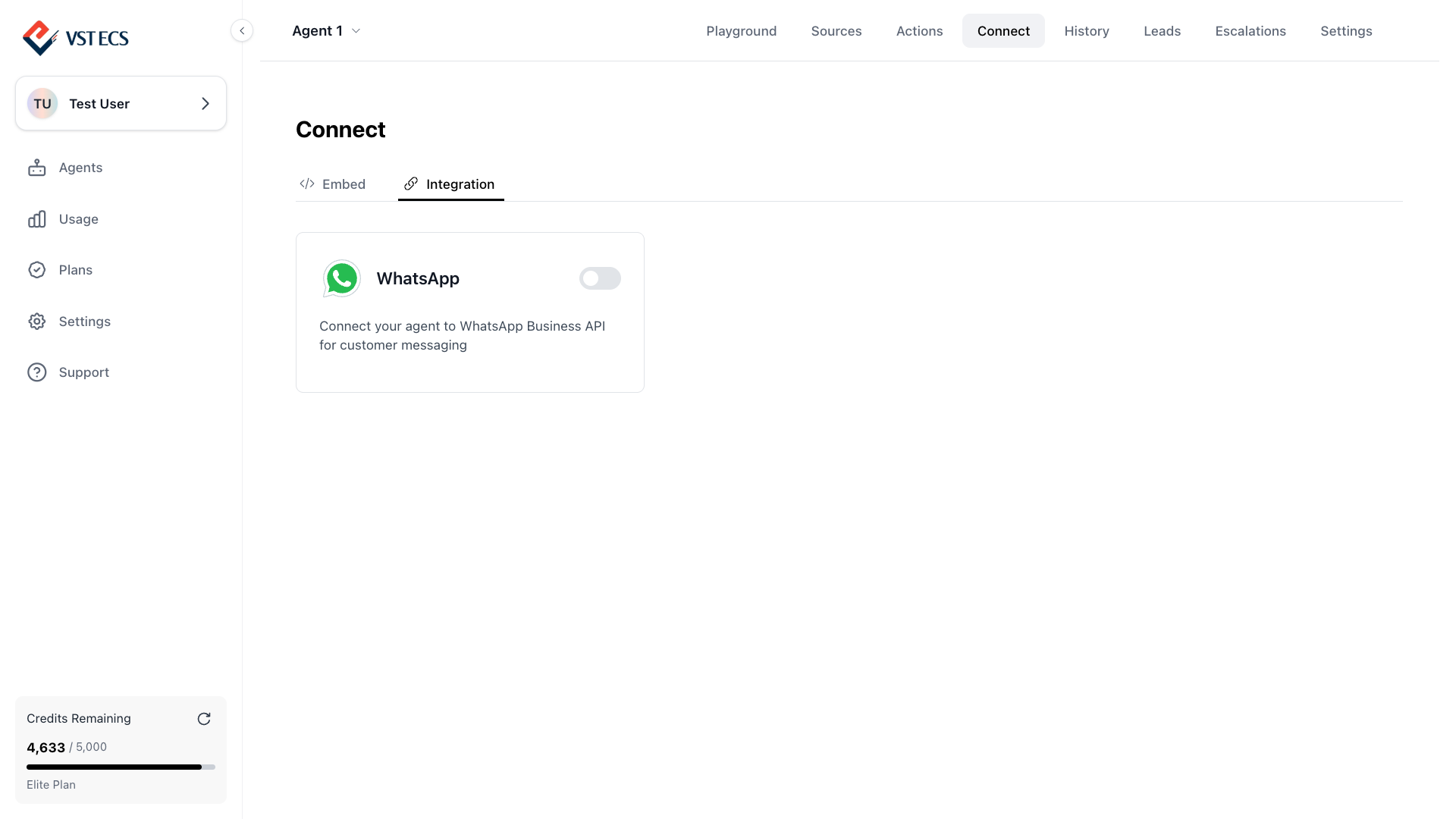
Go to Connect, then Integration, then WhatsApp
Click the Connect tab at the top of the Agent page. Select the Integration sub-tab. You will see the WhatsApp card with a toggle switch.
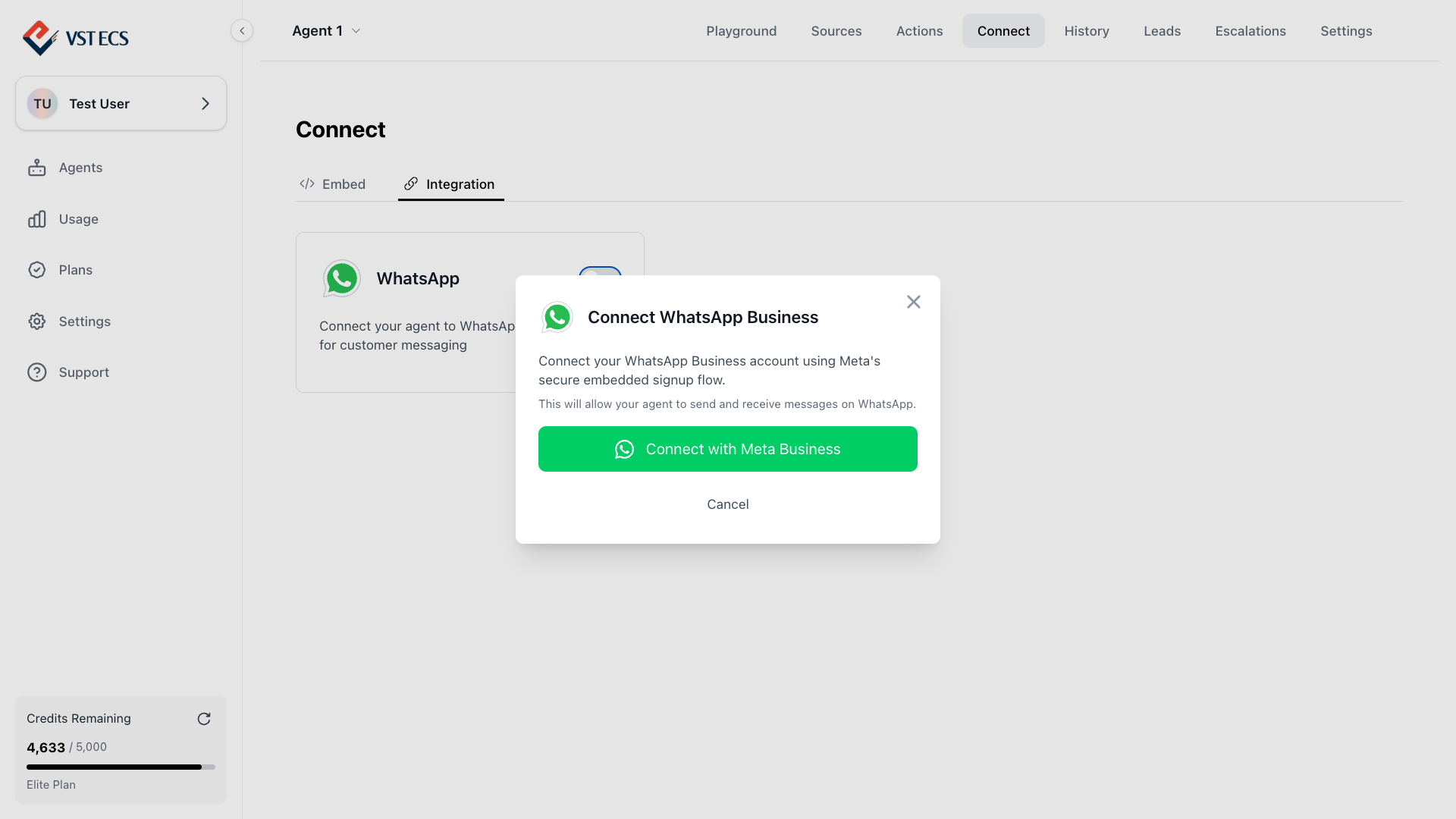
Click the WhatsApp card
Click the WhatsApp card to open the Connect WhatsApp Business dialog. Click Connect with Meta Business to open the Meta sign-in popup. Sign in with the Facebook account that manages your Meta Business Account.
Complete the Meta Embedded Signup
Inside the popup you will be guided to:
- Confirm your business identity
- Select your WhatsApp Business Account (WABA)
- Select the phone number you want to connect
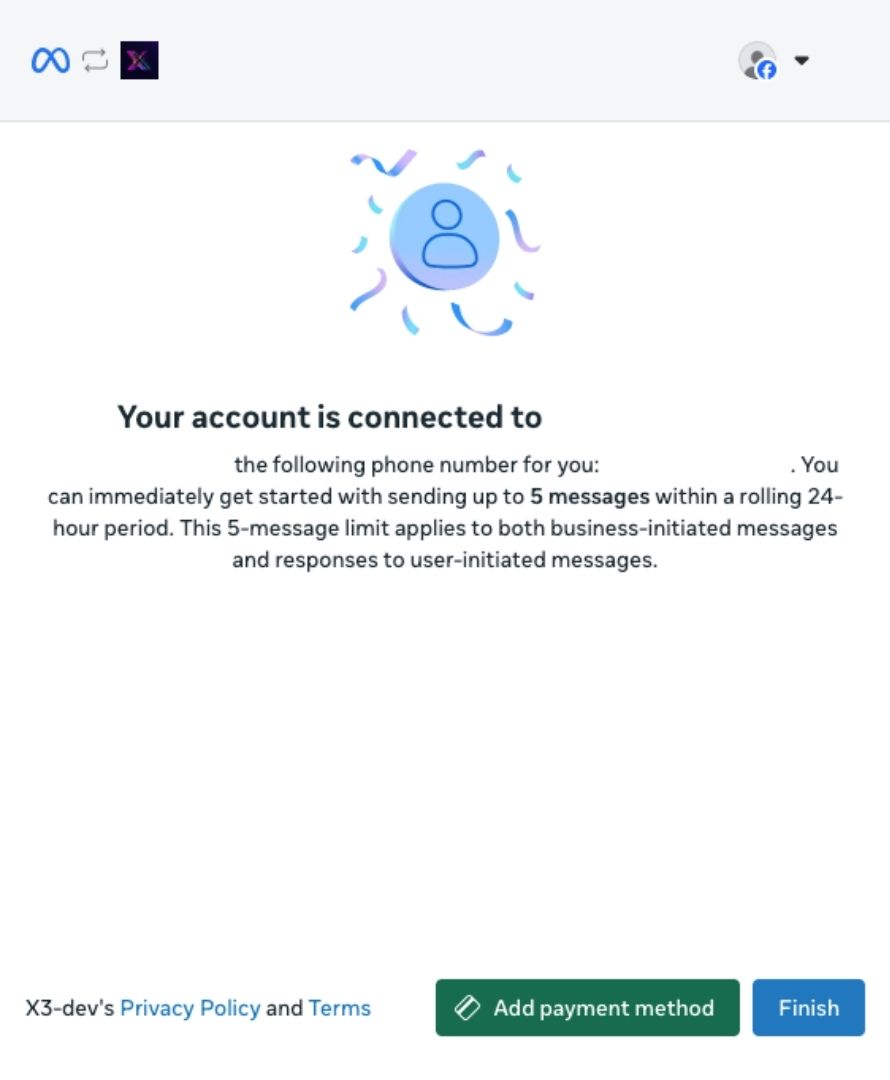
Wait for X3 to connect
After you close the popup, X3 finishes linking your account in the background. This takes a few seconds.
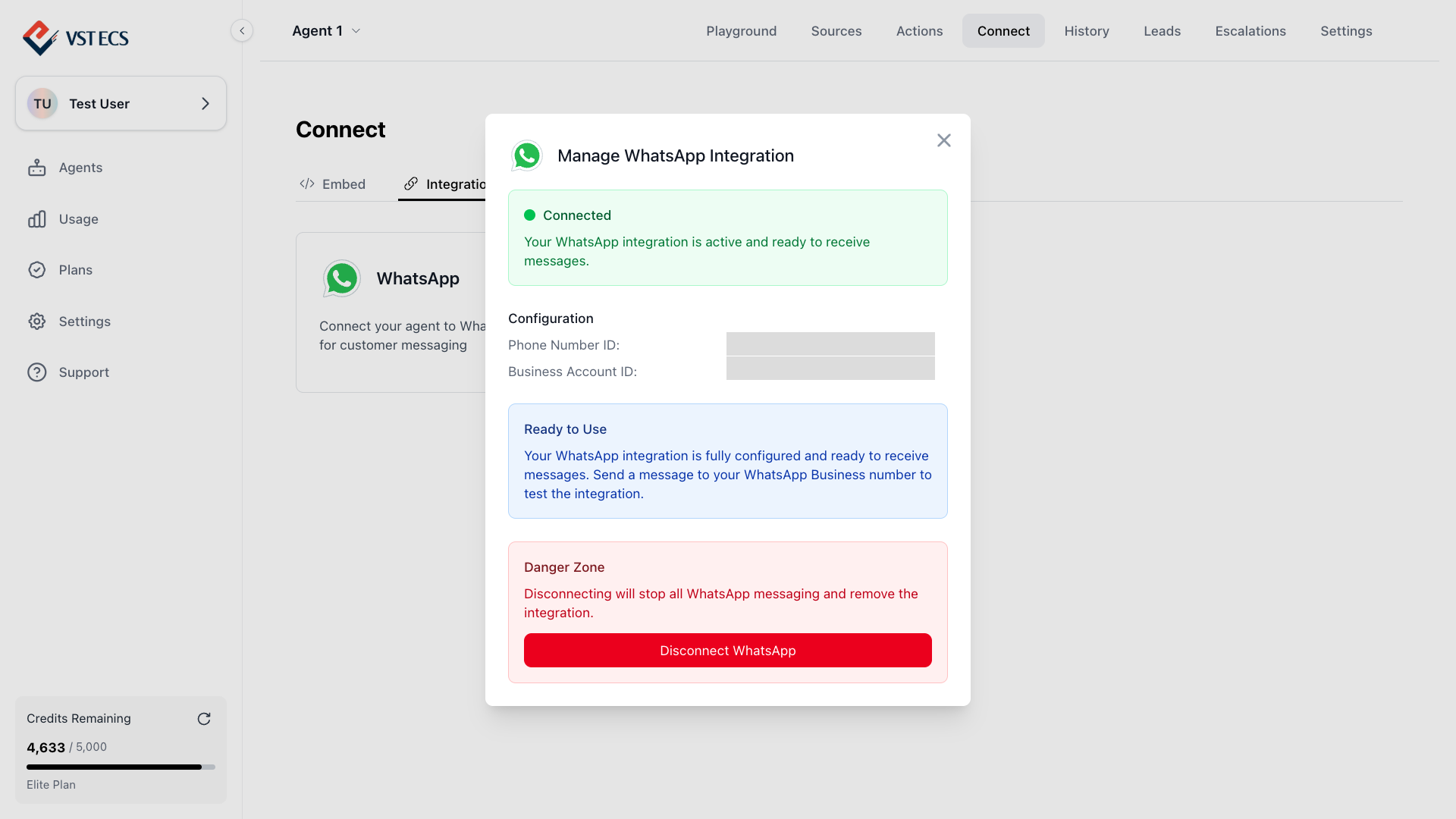
Check your status
You should see Connected or Pending Verification on the Connect page. If you see Connected, your agent is live. If you see Pending Verification, Meta is reviewing your display name.
Connection status
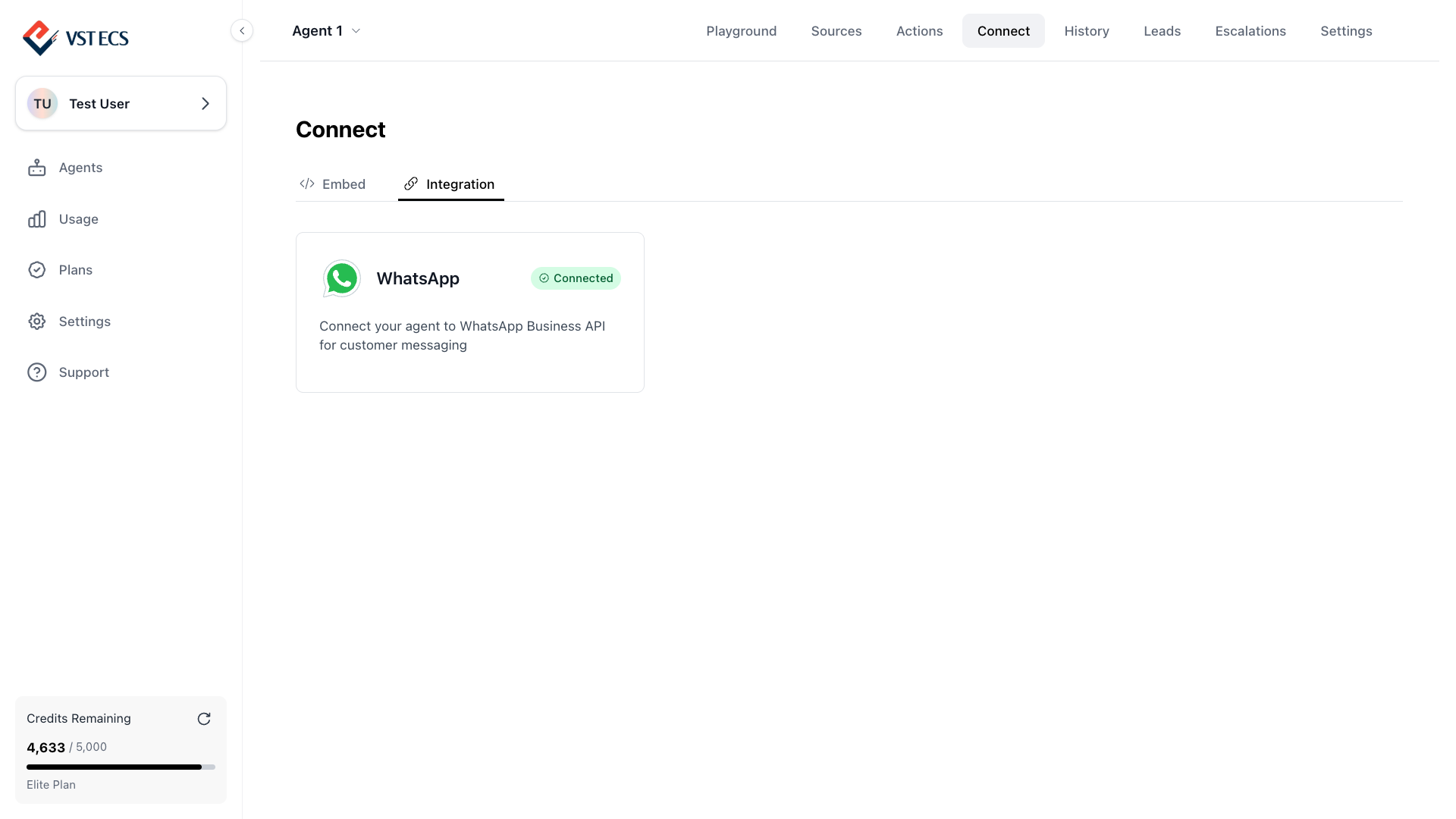
After connecting WhatsApp, X3 displays a status badge on your Agent's Connect page. Here is what each status means and what to do.
| Status | What it means | What to do |
|---|---|---|
| Available | No WhatsApp account has been connected yet. | Click the WhatsApp card and select Connect with Meta Business. |
| Pending Verification | Meta is reviewing your business before you can send messages. | Wait. X3 checks automatically every 15 seconds. |
| Setup Incomplete | The connection process started but was not completed. | Re-open the WhatsApp card and complete the signup. |
| Connected | Fully connected and active. | Nothing - your agent is live. |
Timelines
- Technical connection: about 5 minutes on a clean setup.
- Meta review of your Display Name: up to 24 hours, sometimes same day. Required the first time only.
- Phone number provisioning: minutes if the number is fresh, longer if you are migrating an existing number and Meta has to verify release from another account.
Once the status badge is Connected, the agent starts answering incoming messages immediately. No staging - any message to that number goes to the agent.
What WhatsApp changes about the experience
Most things stay identical to the web widget - system prompt, knowledge, tools, lead forms, escalations. A few things are different because of how WhatsApp works:
- No inline UI. Lead forms on WhatsApp are presented as a series of questions, not an embedded form. Keep them short.
- 24-hour session window. Meta only allows free-form messages in the 24 hours following a user's last incoming message. Outside that window, you need a pre-approved template to re-engage.
- No typing animation. WhatsApp does not let you render an ongoing typing state. The reply appears when it is ready.
- Media is supported both ways. Users can send voice notes, images, and documents. The agent can reply with images and structured messages.
The system prompt is the right place to note these constraints if you want the agent to behave differently on WhatsApp - for example: "If the user is on WhatsApp, keep replies under 2 messages."
Costs beyond your X3 plan
Meta charges per conversation window (a 24-hour block), not per message. Pricing varies by country and category (marketing / utility / authentication / service). Those charges appear on your Meta Business account - they are separate from X3 usage.
Your X3 plan still counts incoming and outgoing messages the same way it does for the web widget. WhatsApp does not get its own limit.
Troubleshooting
Status issues
- Status stuck in "Pending Verification." Meta is reviewing the Display Name you submitted. Check the prerequisites above for the rules Display Names must follow.
- "Setup Incomplete." The popup flow was closed before the final step. Re-open the Connect, then WhatsApp card and click connect again.
- No incoming messages reach the agent. Confirm the status badge is green. If it is, check that the agent itself is set to Active (not Draft).
Popup issues
| Problem | What to do |
|---|---|
| Popup does not open | Disable pop-up blockers in your browser settings. |
| Popup closes immediately | Try a different browser. Chrome works best. |
| Cannot see my phone number | The number may still be a regular WhatsApp account. Delete the WhatsApp account on that phone first. |
| "Account already in use" error | The phone number is already connected to another X3 agent. Contact support. |