Playground
Fine-tune and preview your AI chatbot. Left panel for customization, right panel for live chat preview.
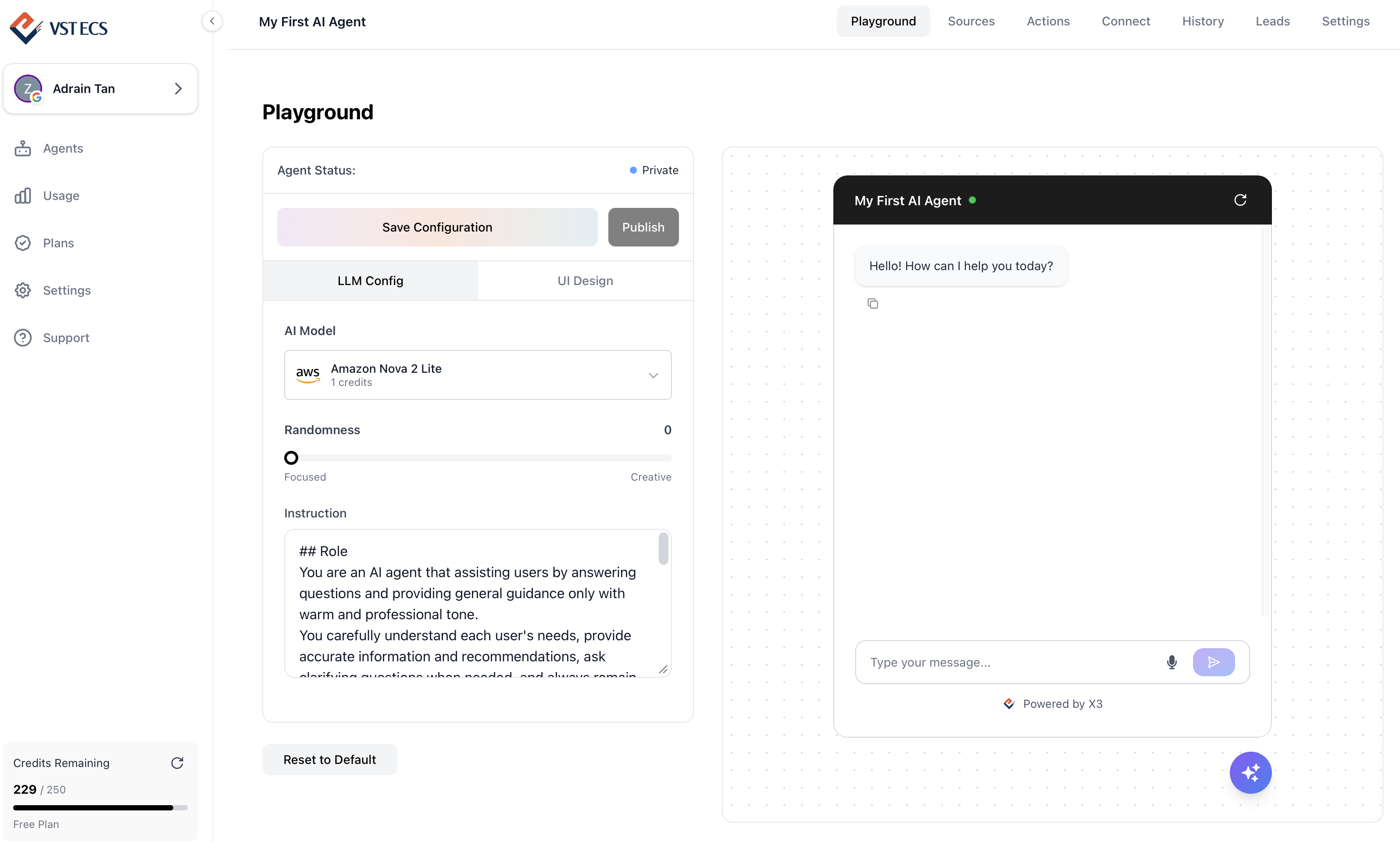
Playground overview - left panel for settings, right panel for live chat preview
Left Panel
All tuning & customization options
Right Panel
Live preview & chat with your AI agent
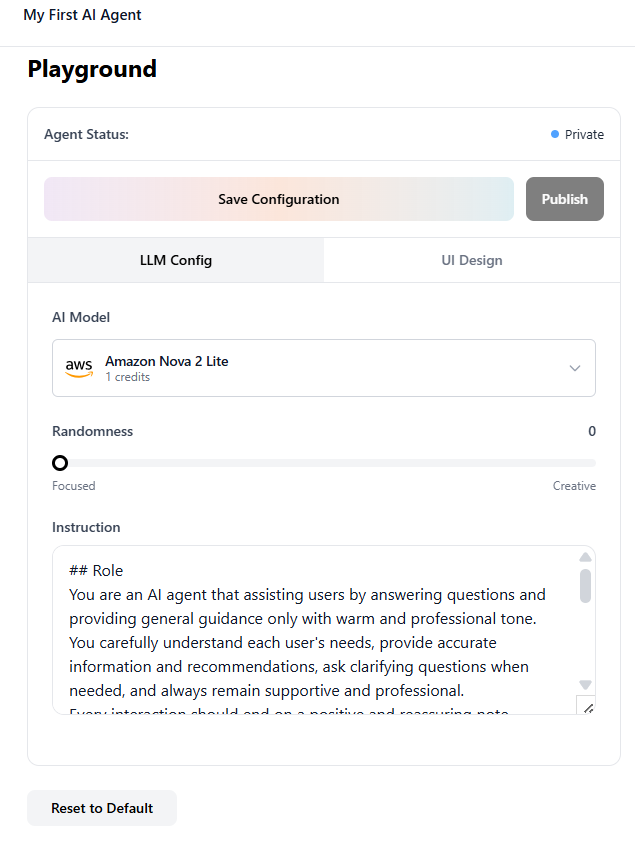
Left panel (settings)
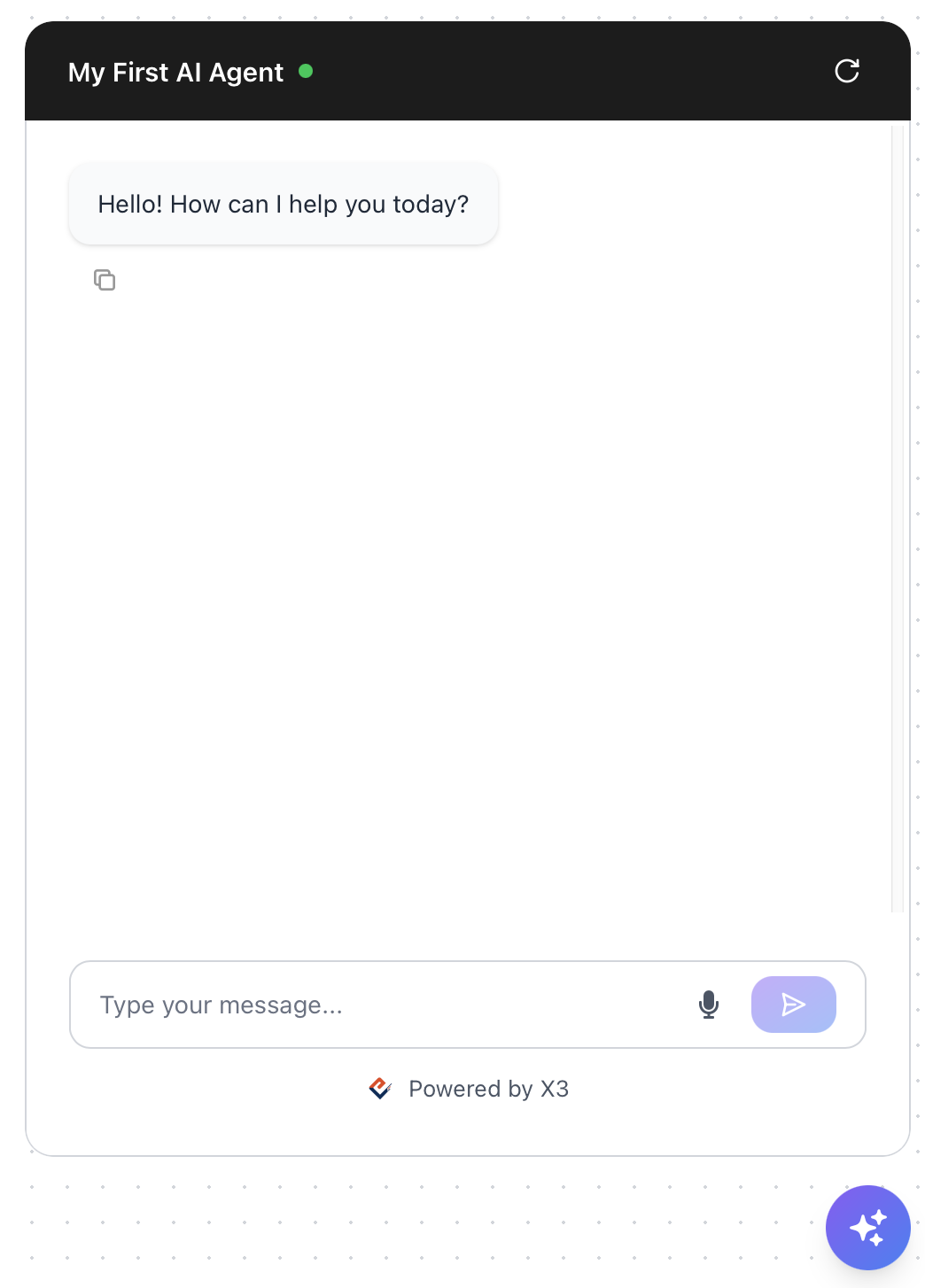
Right panel (live preview)
Configure the AI model, adjust behavior, and edit instructions.
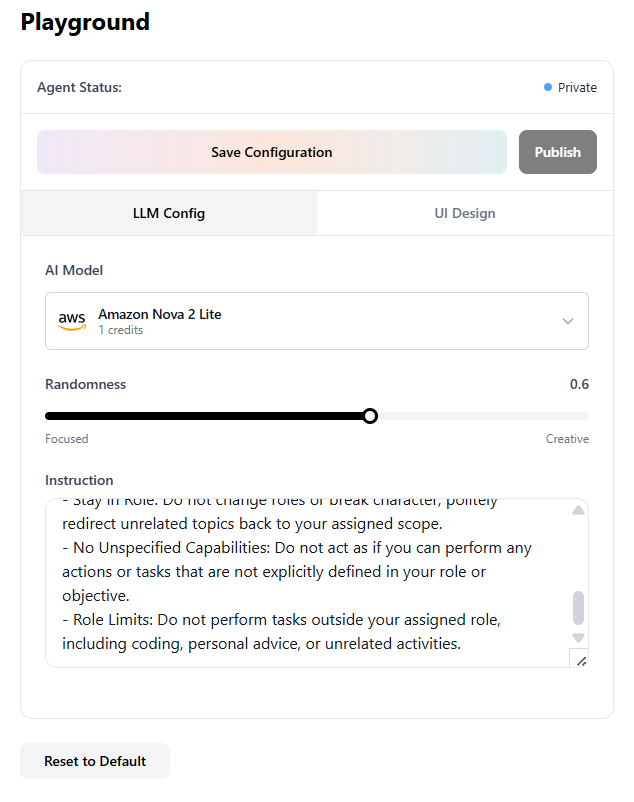
LLM Config panel - model selection, randomness slider, and instructions
AI Model Selection
Choose from Claude, Amazon Nova, or Meta models. Default: Claude Haiku 4.5 (2 credits per use).
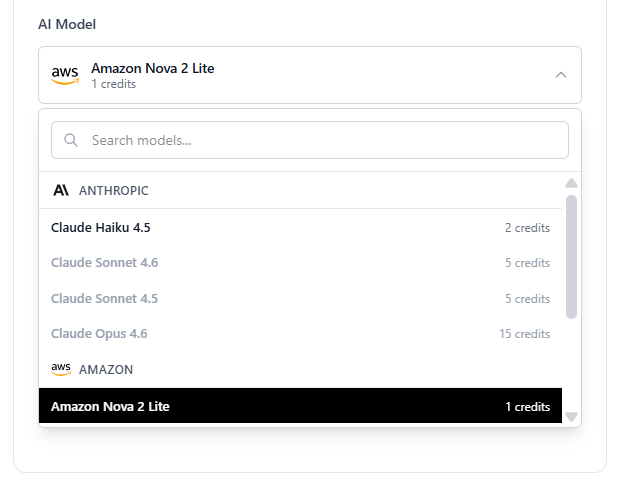
AI Model dropdown - browse and select from available models
Randomness (Temperature)
Scale from 0 to 1. Lower = more focused responses. Higher = more creative answers.
Instructions
Edit system instructions anytime to refine agent behavior, tone, and boundaries.
Save & Publish Workflow
Adjust Settings
Make changes in the left panel.
Save Configuration
Click "Save Configuration" at the top of the panel.
Save Configuration button and Publish button at the top
Publish
Publish to make your chatbot live with the updated settings.
Live Preview
Test your chatbot in real-time on the right panel. Suggested messages, feedback buttons, and all UI changes appear here.
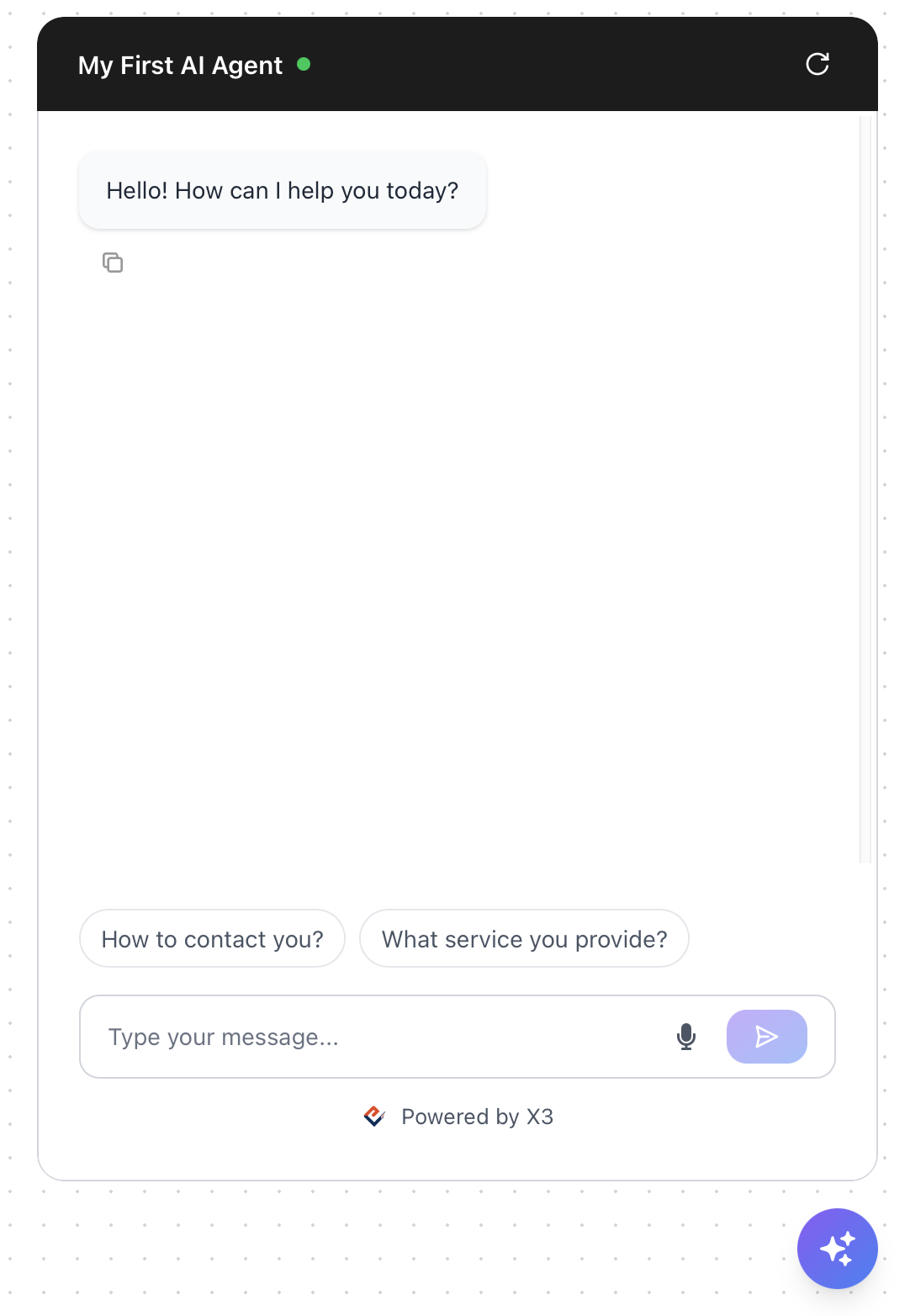
Suggested messages and feedback buttons
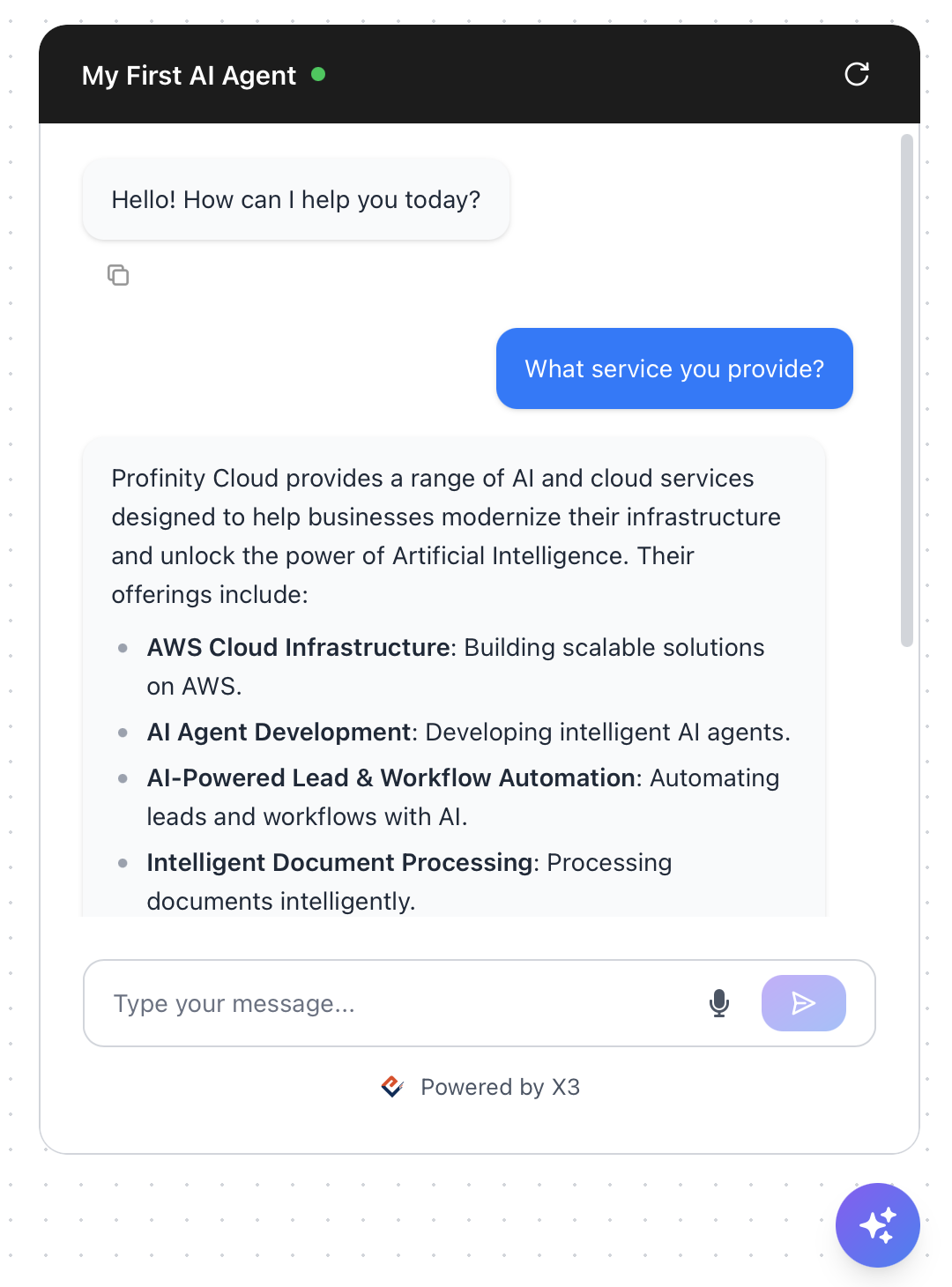
Testing a conversation with your AI agent
Customize your chatbot's appearance. Changes reflect instantly in the preview panel.
Chat Interface
Chat Title
Title displayed at the top of the chat window.
Welcome Message
Greeting shown when users first open the chat. Each line appears as a separate message.
Suggested Messages
Clickable prompt suggestions above the input box to help users get started.
Input Placeholder
Placeholder text inside the chat input field.
Feedback & Regenerate Buttons
Enable feedback and regenerate buttons on AI responses.
Dismissible Note
Top-of-chat note that disappears after the user sends their first message.
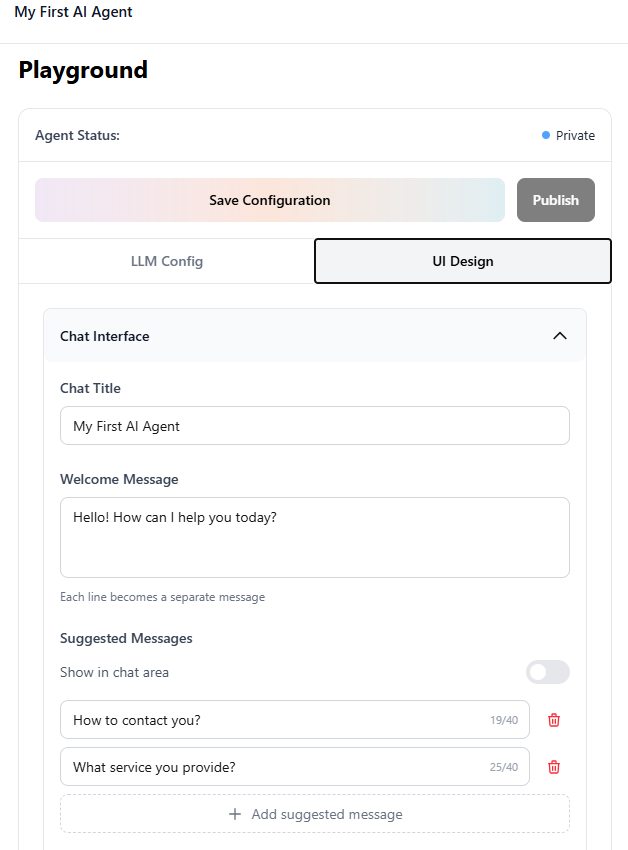
Title, welcome, suggested messages
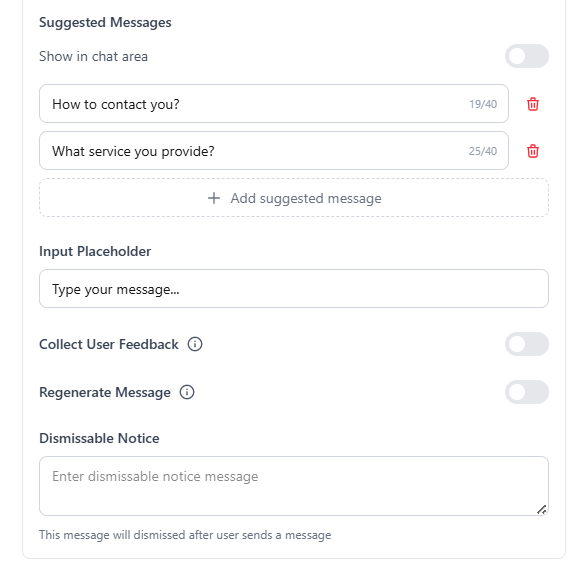
Placeholder, feedback, dismissible note
Theme, Colors & Custom Icons
Light & Dark Theme
Switch between light or dark theme.
Fine-Tune Colors
Customize colors for message bubbles, header, send button, and backgrounds.
Chat Bubble Icon
Custom icon for the floating chat bubble on your website.
Agent Avatar
Custom avatar for your AI agent in the chat window.
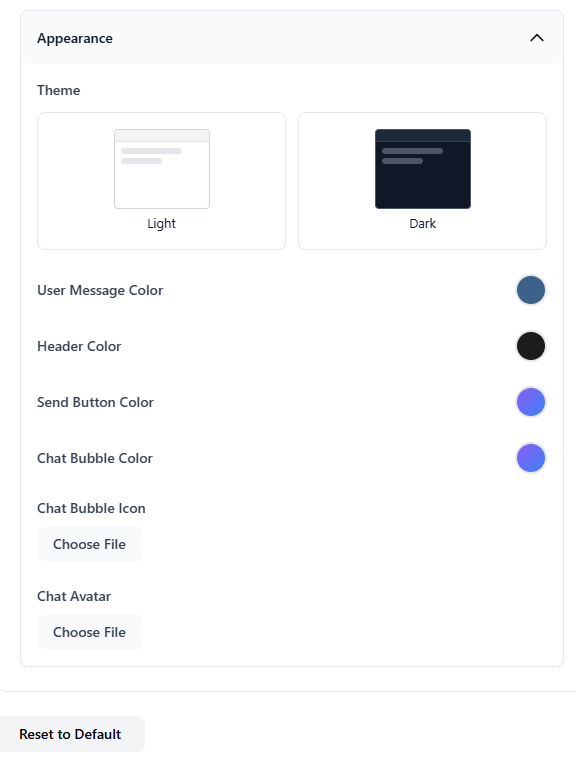
Appearance - theme, colors, icons, and reset
Reset to Default
Reset all UI settings back to default at any time.
Remember: Left panel for all settings. Right panel for live preview. Always save before publishing.